 DeltaExecutorApp
Delta Injection problems usually appear after updates, configuration changes, or incomplete setups.
In most cases, the Delta executor itself is not broken — the issue comes from missing dependencies or a failed local configuration.
This page explains what the “not injecting” problem means, why it happens, and the exact steps that are known to resolve it.
How to Fix Delta Executor Not Injecting Error (Step-by-Step)
Step 1: Reinstall Delta Executor
- Uninstall the current Delta Executor installation
- Install it again using the latest available version
- Launch the executor once to check if the issue is already resolved
If the problem continues, move to the next step.
Step 2: Open the Configuration Panel
- Launch Delta Executor
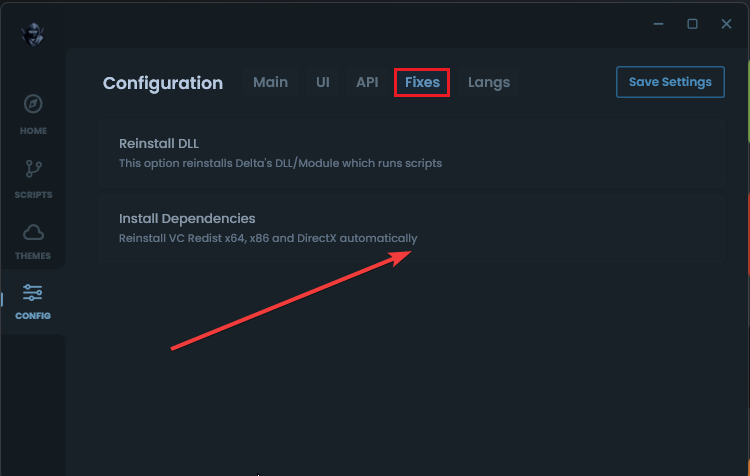
- Locate and click on Configure option from the left-side panel
This section contains built-in tools designed to fix common runtime problems.
Step 3: Access the Fixes Section
- Inside Configure, click on Fixes which is seen at the top of the page
- This area is used to repair missing or broken dependencies
Step 4: Install Dependencies
- Once you’re in here, click on Install Dependencies
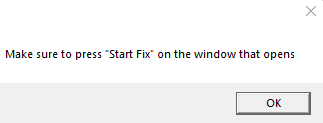
- A message will appear saying:
“Make sure to press ‘Start Fix’ on the window that opens” - Click OK to continue
Step 5: Start the Fix Process
- After pressing “OK” on the message box, a new window should open.
- Click on Start Fix
- Follow all on-screen instructions until the process finishes
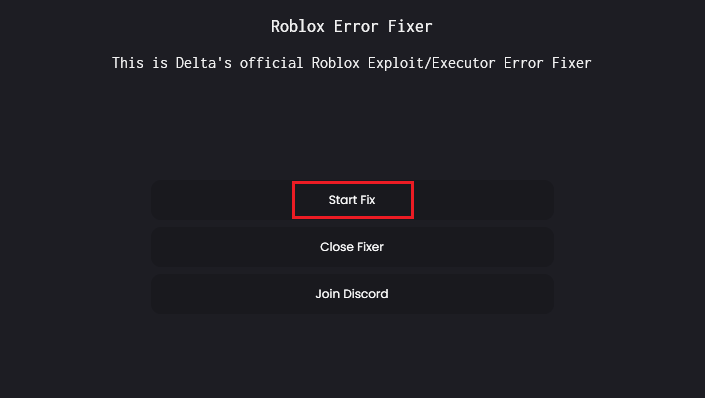
Do not close the window while the fix is running.
Step 6: Restart and Test
- Close Delta Executor completely
- Relaunch the application
- Try injecting again
In most cases, injection works normally after this process
What does “Delta Executor not injecting” mean?
When users say Delta Executor is not injecting, they usually experience one of the following:
- Clicking Inject does nothing
- Delta opens but scripts never execute
- Roblox launches, but Delta cannot attach
- Injection starts but silently fails
Injection refers to the process where Delta connects its script engine to the running Roblox process. If that connection fails, scripts cannot load or execute.
Why “Delta doesn’t inject” problem happens
Injection issues are usually caused by one or more of these factors:
- Missing or broken dependencies
- Corrupted local installation files
- Incomplete setup after an update
- Outdated version of Delta Executor
- System-level restrictions blocking injection
- Configuration errors inside the executor
Because injection depends on system libraries, even a small setup issue can break it.
Why this fix works
Injection depends on system libraries and runtime components.
When these components are missing or corrupted:
- Delta loads
- Roblox runs
- But injection fails silently
The Install Dependencies process repairs those missing components and restores the injection pathway.
If injection still does not work
If the issue persists after applying the fix, you can do the following to avoid future errors:
- Restart your system or device
- Make sure no security software is blocking the executor
- Temporarily disable antivirus software that may interrupt its functionalities.
- Avoid poorly coded scripts and always copy them from an authentic source.
- Ensure no old Roblox or Delta files remain installed
- Check system compatibility and make sure you have installed all dependencies.
- Close background applications, especially security programs, that may interrupt the script from running.
- You are using a recent version of Delta
- Run as administrator — for this, right-click on the Delta software, choose “Run as administrator,” and try injecting the script.
- Roblox is installed correctly and launches normally
Injection failures that persist are usually caused by external system restrictions or version mismatches. The issue happens consistently (not just once). If the problem persists after restarting the app, continue with the fix stated above.